 FoxCue
Publish a Video to YouTube
Upload a finished FoxCue video to YouTube when publishing is enabled: connect the channel, review the draft, then schedule or publish.
FoxCue can upload a finished video to YouTube. The upload runs only when native publishing is enabled for that server. If it is off, the screen says YouTube uploads are not available right now. You can still download the file and upload it yourself.
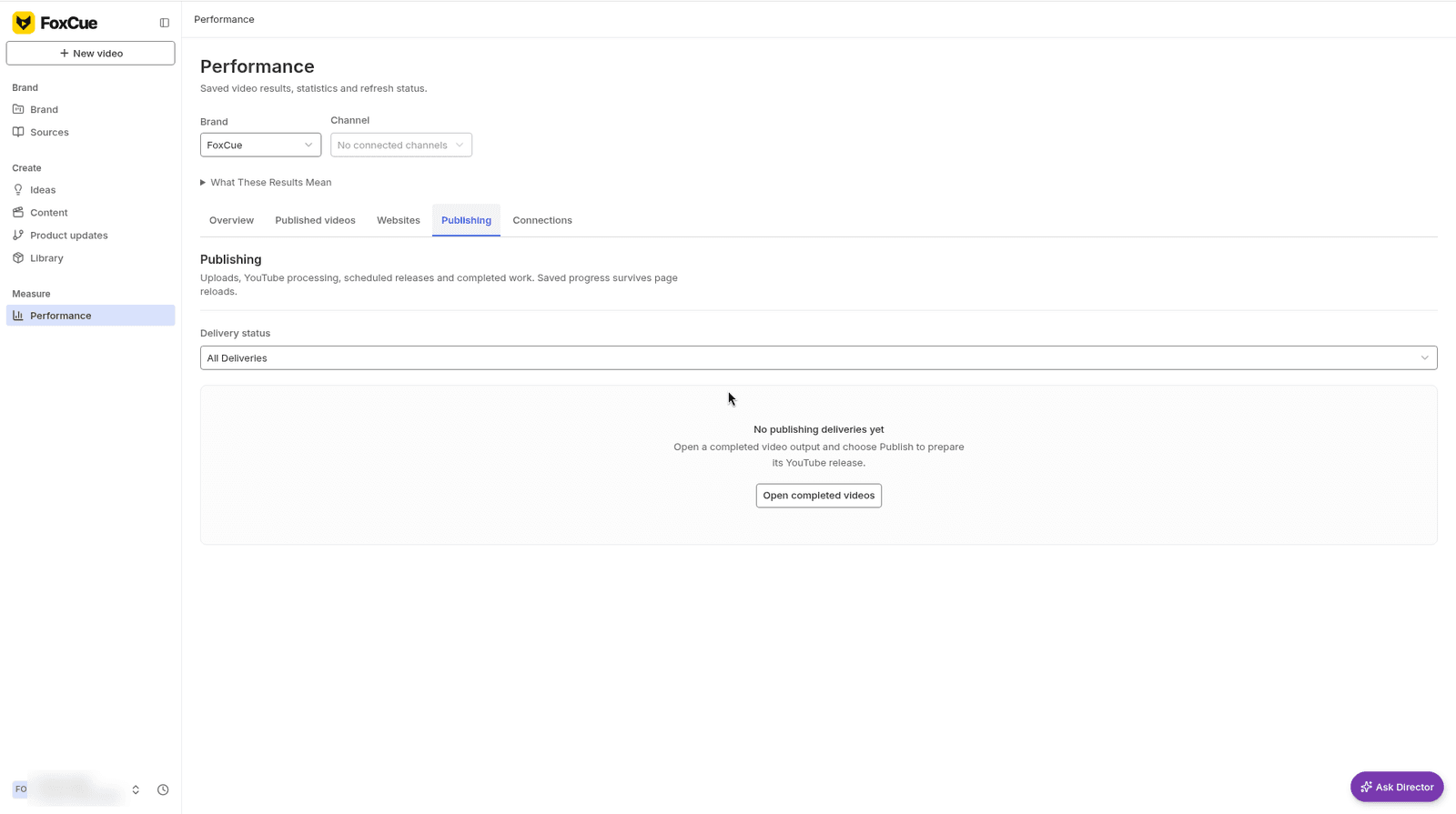
Performance → Publishing, with no deliveries yet.
Connect the channel from the brand's Websites & Channels tab, or from Performance. An owner turns on Enable YouTube publishing for that connection. FoxCue does not delete a video that is already on YouTube. Cancelling a delivery clears a schedule that has not gone out.
Publish
Open the video in Content
Finished videos are under Create → Content. /outputs redirects to /content?tab=all.
Review the draft
Set the title, description, tags and thumbnail. FoxCue can generate that metadata and one thumbnail from the brand and the video. You edit the result before anything is uploaded.
Use the original file when nothing changed
If the upload has no edits, the screen says to choose Use Original Upload or Publish to YouTube and skip a new render.
Submit
Only the reviewed output is uploaded. Results show in Performance under All channels. You can schedule, and later reschedule, cancel or retry the delivery.
The same steps exist on the API under /publishing. See the operations list.